If you get this message during the installation of SharePoint 2010 beta or, like me, when going to 'External Content Types' in SharePoint Designer 2010, don't worry :).
There is a hotfix for both (Windows Server 2008, Windows Server 2008 R2). After the installation, the problem should be fixed.
zaterdag 28 november 2009


donderdag 26 november 2009
New 'Upload multiple files' GUI in SharePoint 2010
In SharePoint 2010, Microsoft has included a new interface for uploading multiple files to a document library. Especially the drag and drop functionality is super easy. The GUI also looks a lot nicer then its previous version.


Using the output of other Visual Studio 2010 projects
This is a powerfull new little feature in the SharePoint Development tools for Visual Studio 2010. In A project, you can use outputs from other projects in the current project.
Before, you had to create these weird post building events to copy the built dlls to the correct folder. Now you can do it easily via the GUI.
First double click on the package and then go to 'Advanced'. You can then 'Add' a existing assembly or an output from an other project.

Select the project and add safe controls for the correct namespaces and references to the class names.

Before, you had to create these weird post building events to copy the built dlls to the correct folder. Now you can do it easily via the GUI.
First double click on the package and then go to 'Advanced'. You can then 'Add' a existing assembly or an output from an other project.

Select the project and add safe controls for the correct namespaces and references to the class names.

Creating a visual web part
One of the new Visual Studio 2010 project types is the 'Visual Web Part' project. Because the Microsoft guys claim that by using this project it is now much easier to create a web part, a gave it a try.
This 'guide' is meant to inform beginners so don't expect any fancy stuff. I just want to give an overview on how web parts can be created using Visual Studio 2010.
1. When starting up Visual Studio, I started by creating a Visual Web Part project.

2. Visual Studio will ask you which SharePoint site it has to use for deployment.

3. Visual Studio will then create the project and by default, the user control (.ascx file) will be opened. Switch to design view to start the work.

4. To do a first test, I added a label and a button. I then dubbel clicked the button and put some code for the event. As you can see, all the controls you can use are in the toolbox on the left. Double clicking a control will take you to its event listener. This is pretty much the same as creating WinForms.

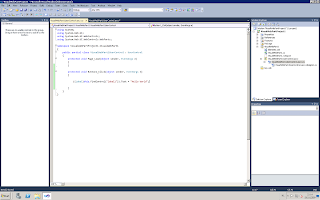
5. Something pretty new in Visual Studio 2010 is the control you have over your features and the solution package (WSP). On the right, in the 'Solution Explorer', you see 'Package' and 'Features' elements. Opening them and double clicking their content will give you a lot of options. You have control over what files will be included in the feature, the scope, its XML and for the package you can control which features will be included. Using the 'Manifest' and 'Advanced' buttons you will get access to even more options like which external assemblies to add to your package.
It's clear that Microsoft included almost all WSP builder functionalities and has gone even further making it much more easier and straightforward to create SharePoint solutions.


6. You can now press F5 and Visual Studio will create the WSP and deploy your web part. It will ask you to go directly into debug mode. Select this option. You will see I put an error in the code and the debugger will automatically pick it up when clicking the button.
To be able to click on the button, you must place the web part on a page. Go to 'Edit page', insert, insert a web part and you will find your web part in the 'Custom' category.


7. To actually make this web part work, I deleted the label, placed a textbox instead and adjusted the code in the event listener. I then redeployed and repositioned the web part. You can press the button to see the result.


This 'guide' is meant to inform beginners so don't expect any fancy stuff. I just want to give an overview on how web parts can be created using Visual Studio 2010.
1. When starting up Visual Studio, I started by creating a Visual Web Part project.

2. Visual Studio will ask you which SharePoint site it has to use for deployment.

3. Visual Studio will then create the project and by default, the user control (.ascx file) will be opened. Switch to design view to start the work.

4. To do a first test, I added a label and a button. I then dubbel clicked the button and put some code for the event. As you can see, all the controls you can use are in the toolbox on the left. Double clicking a control will take you to its event listener. This is pretty much the same as creating WinForms.


5. Something pretty new in Visual Studio 2010 is the control you have over your features and the solution package (WSP). On the right, in the 'Solution Explorer', you see 'Package' and 'Features' elements. Opening them and double clicking their content will give you a lot of options. You have control over what files will be included in the feature, the scope, its XML and for the package you can control which features will be included. Using the 'Manifest' and 'Advanced' buttons you will get access to even more options like which external assemblies to add to your package.
It's clear that Microsoft included almost all WSP builder functionalities and has gone even further making it much more easier and straightforward to create SharePoint solutions.


6. You can now press F5 and Visual Studio will create the WSP and deploy your web part. It will ask you to go directly into debug mode. Select this option. You will see I put an error in the code and the debugger will automatically pick it up when clicking the button.
To be able to click on the button, you must place the web part on a page. Go to 'Edit page', insert, insert a web part and you will find your web part in the 'Custom' category.


7. To actually make this web part work, I deleted the label, placed a textbox instead and adjusted the code in the event listener. I then redeployed and repositioned the web part. You can press the button to see the result.


maandag 23 november 2009
SharePoint 2010 Web Parts: Multiple versions supported
Finally, it's now possible to version your dll files. In the previous versions of SharePoint you could do this because the version itself was embedded in the web part's xml.
In SharePoint 2010 you can now choose which version the system has to use. Any already placed web parts will then use this version as well.
As said before, I will show this in more detail in the following weeks.
In SharePoint 2010 you can now choose which version the system has to use. Any already placed web parts will then use this version as well.
As said before, I will show this in more detail in the following weeks.
zaterdag 21 november 2009
SharePoint 2010 Beta Installation
Just want to tell you that if you have problems while installing Office SharePoint Server 2010 beta and you get messages like
Some people have experienced this problem during the installation itself. The firewall was blocking PSConfig. I myself experienced this when trying to create a new farm and connecting to my separate Windows Server 2008 box with SQL Server 2008 installed on it.
"An error has occurred while validating the configuration settings. An exception of type System.ArgumentNullException was thrown. Additional exception information: The errorData argument cannot be null or zero length. Parameter name: errorData"you might want to check your firewall settings. Might sound like pure logic to you but I'm sure some people will spend a lot of time finding the cause of this problem.
Some people have experienced this problem during the installation itself. The firewall was blocking PSConfig. I myself experienced this when trying to create a new farm and connecting to my separate Windows Server 2008 box with SQL Server 2008 installed on it.
zaterdag 14 november 2009
Workflows in SharePoint 2010
Microsoft did some improvements in this area as well. They maybe are not as mind blowing as some of the other new features, but some of the new stuff opens up even more possibilities when you combine them with the many other features you have access to.
One of these new features are 'workflow events' which are triggered when for example a workflow has ended.
I also want to say that the SharePoint 2010 workflows will be based on .NET 3.5 and not 4.0.
When the beta comes out this month I will surely write about all these things in more detail.
One of these new features are 'workflow events' which are triggered when for example a workflow has ended.
I also want to say that the SharePoint 2010 workflows will be based on .NET 3.5 and not 4.0.
When the beta comes out this month I will surely write about all these things in more detail.
Abonneren op:
Posts (Atom)